AutoBotCenter — User Guide
Run MT5 bots (EAs) on your own VPS.
Overview
AutoBotCenter manages many MT5 accounts across many VPS from one screen: install EAs, watch health, update in bulk. You bring your own Windows VPS — we do not sell VPS.
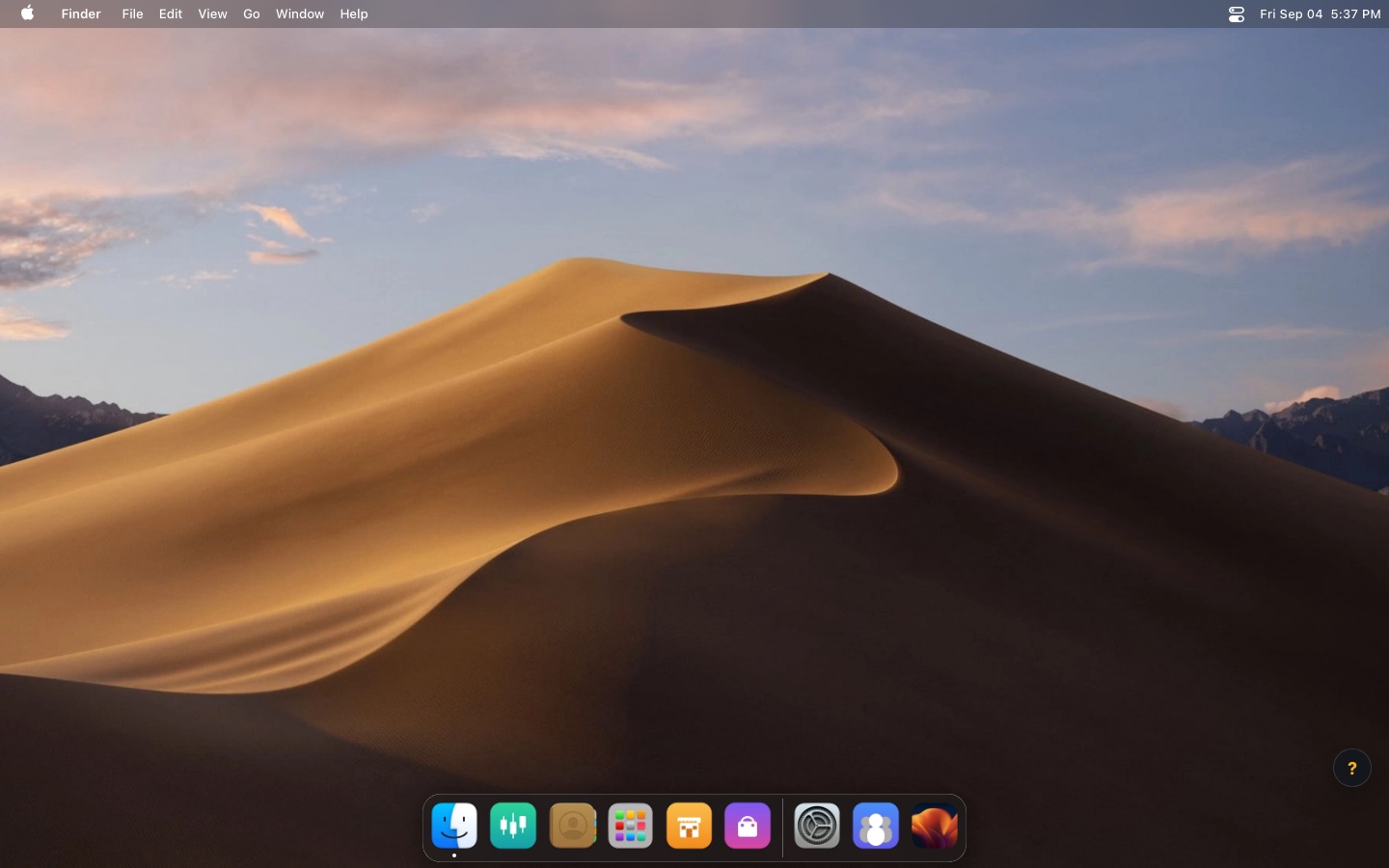
The interface is a macOS-style desktop: the Dock at the bottom opens each app, and every app is a window you can drag and resize. The ? button at the bottom right reopens the quick tour.
Sign in
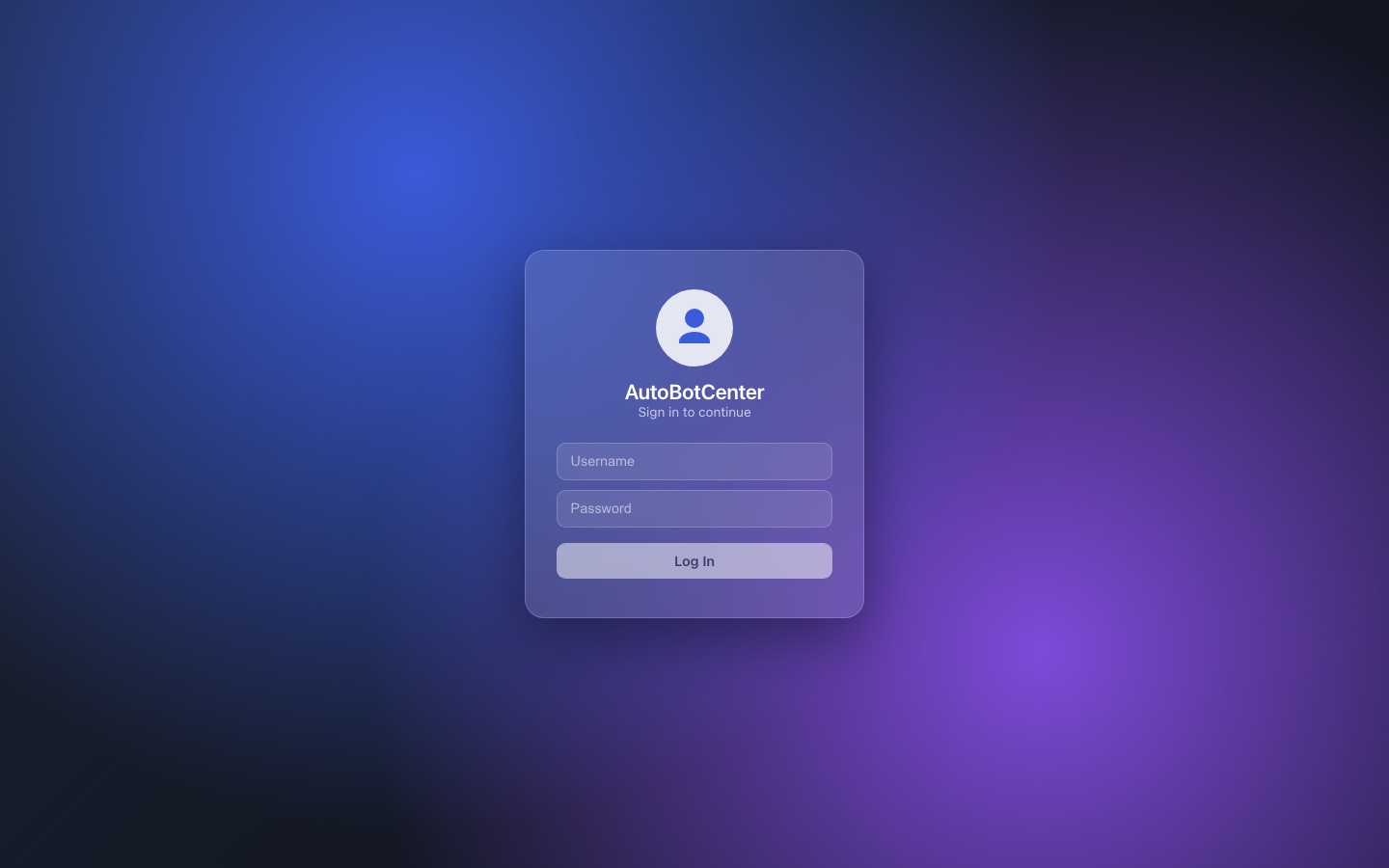
Go to autobotcenter.com and sign in with the account your admin gave you. You must be signed in to use the app or download rex-master.
After signing in you land on the desktop. The Dock holds: Chart · Trading Accounts · VPS · My EA · EA Market · Settings · Wallpapers.
Light and dark mode
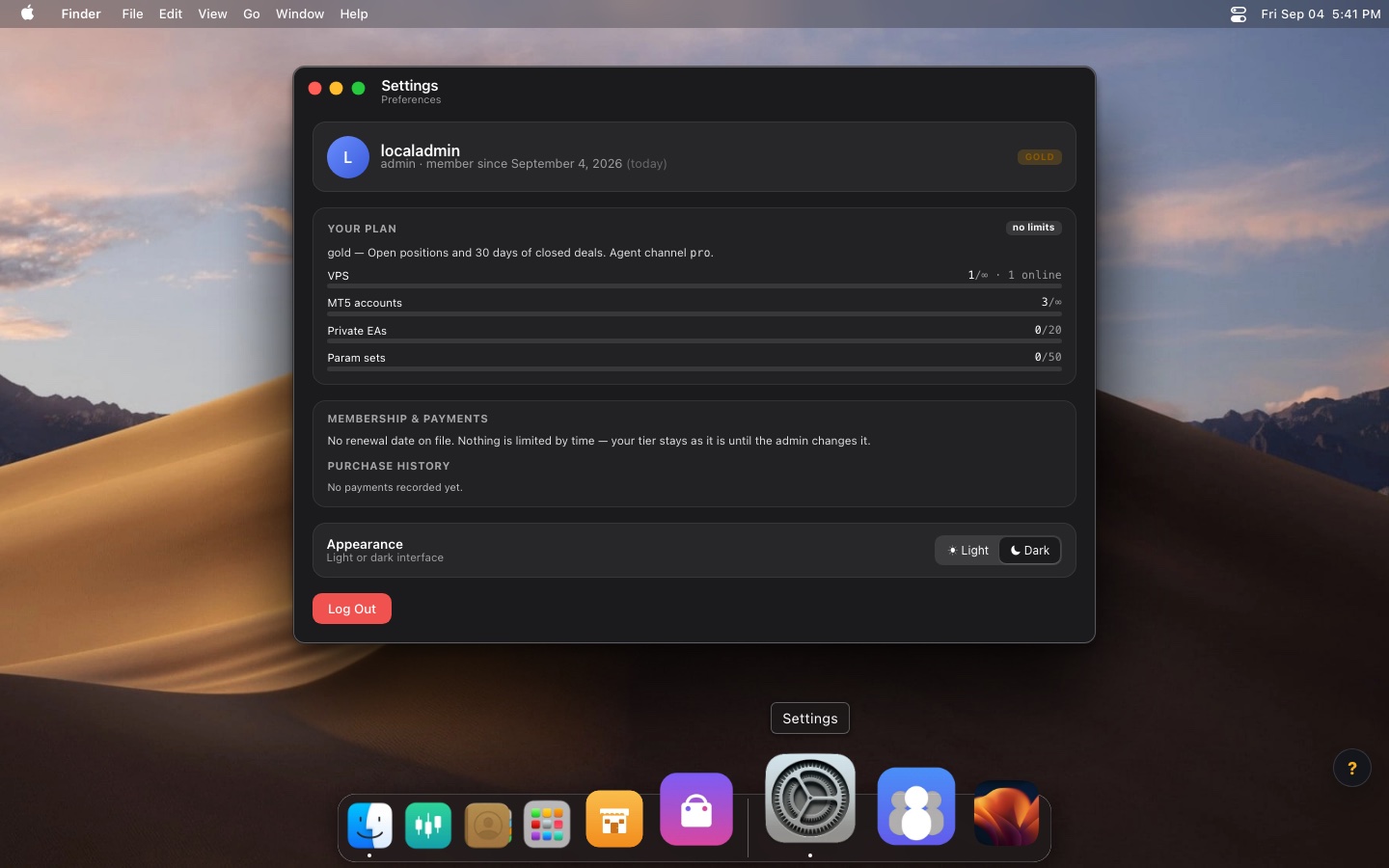
Open Settings → Appearance → pick Light or Dark. The choice is saved in this browser.
VPS
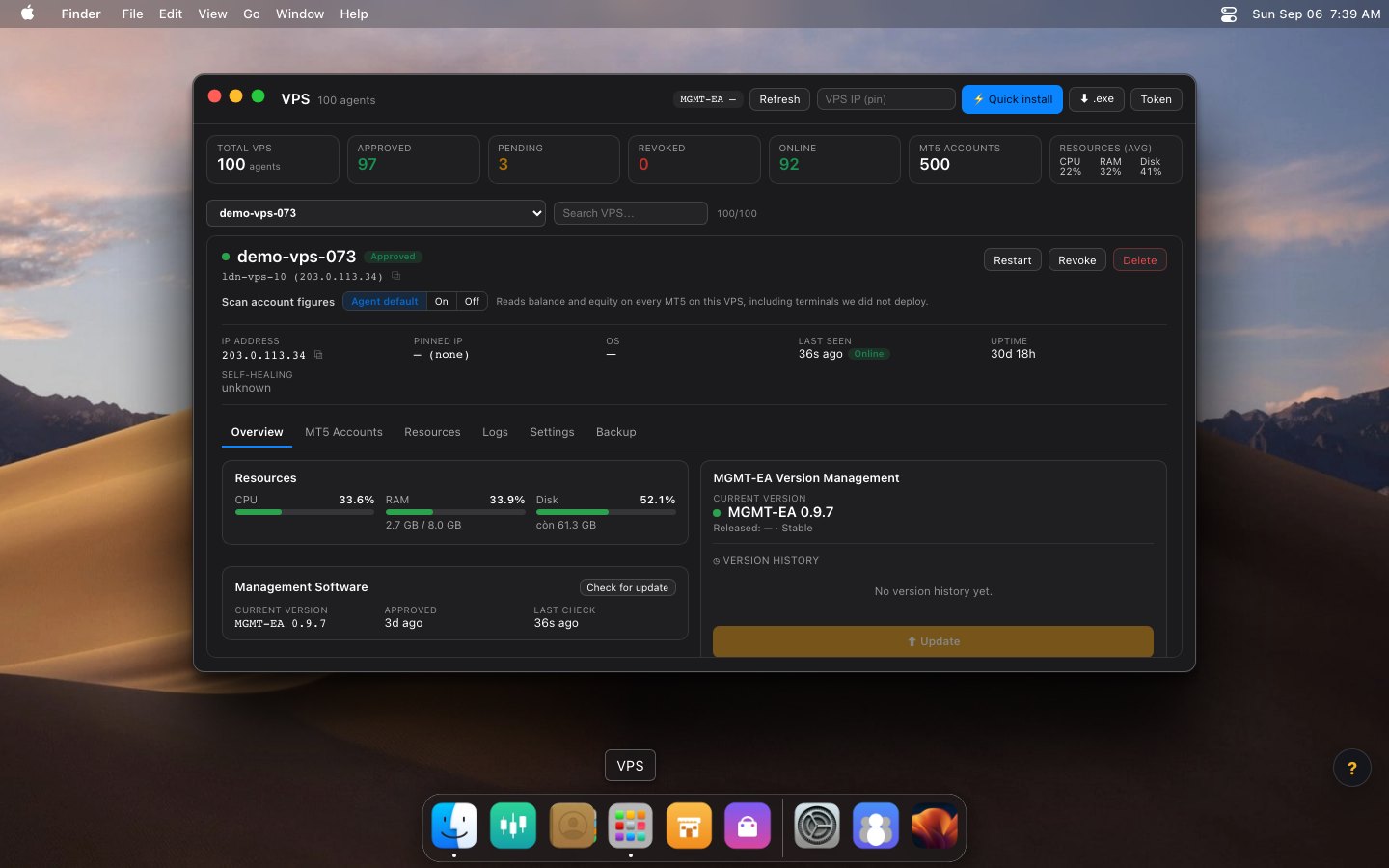
Where you connect and manage your machines. The cards across the top summarise the fleet: total VPS, approved, pending, revoked, online, MT5 account count, average resources.
Connecting a new VPS
- Click ⚡ Quick install — it shows a PowerShell one-liner with a token baked in. Click Copy.
- On the Windows VPS, open PowerShell (Run as administrator), paste, press Enter. It downloads and runs the installer.
- The machine appears in the list as approved and Online within seconds.
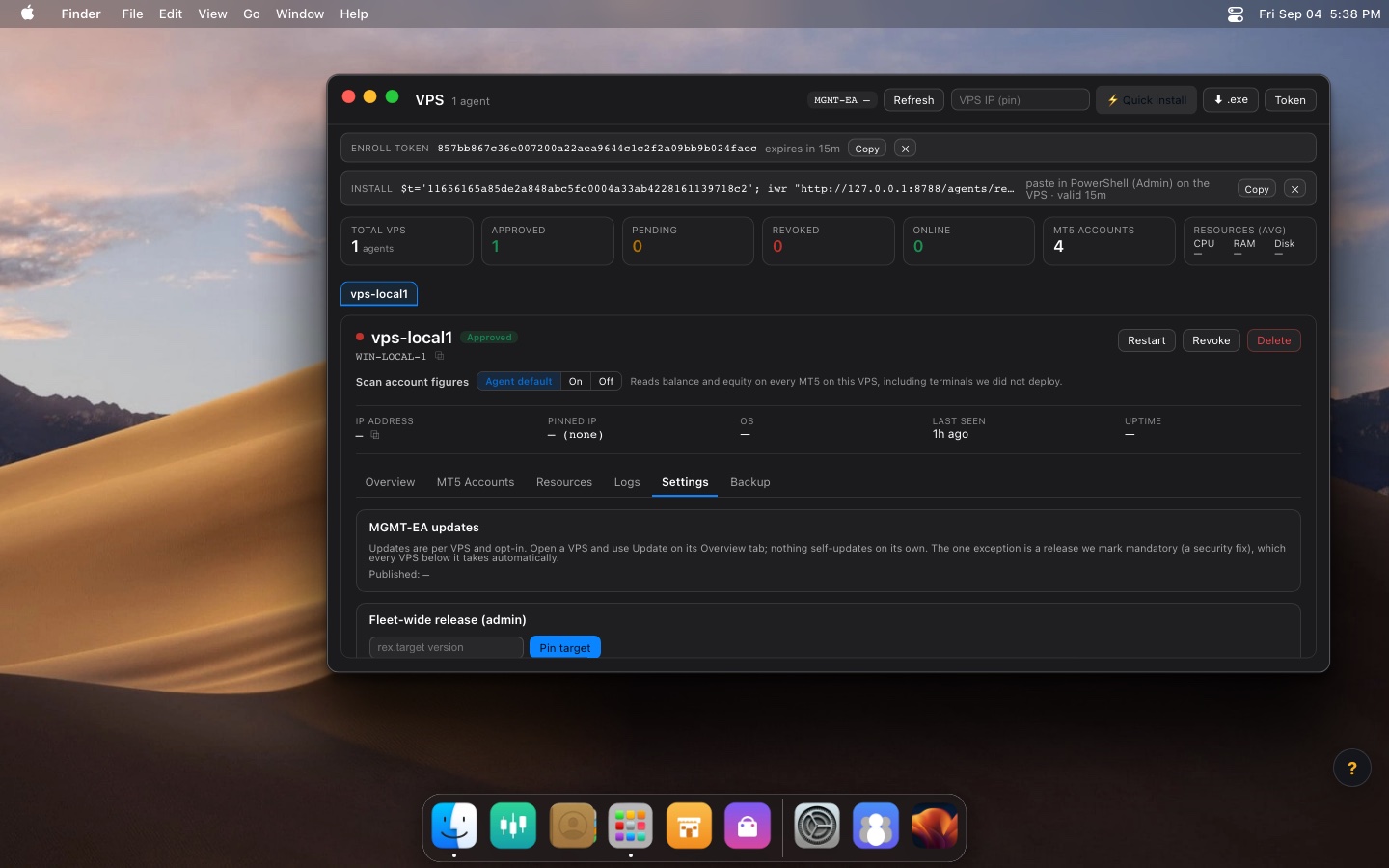
Token issues one by hand (single use, 15 minutes) if you would rather run the installer yourself. ⬇ .exe downloads the standalone installer. VPS IP (pin) locks a machine to one IP — a stolen token used from anywhere else is refused.
The six tabs
| Tab | What is in it |
|---|---|
| Overview | Resources, the rex version running, Check for update and Update, version history |
| MT5 Accounts | The MT5 accounts running on this machine |
| Resources | CPU / RAM / disk over time |
| Logs | The latest log rex sent up — where to look when something breaks |
| Settings | A note on how opt-in updates work, and a danger zone |
| Backup | Configuration backup |
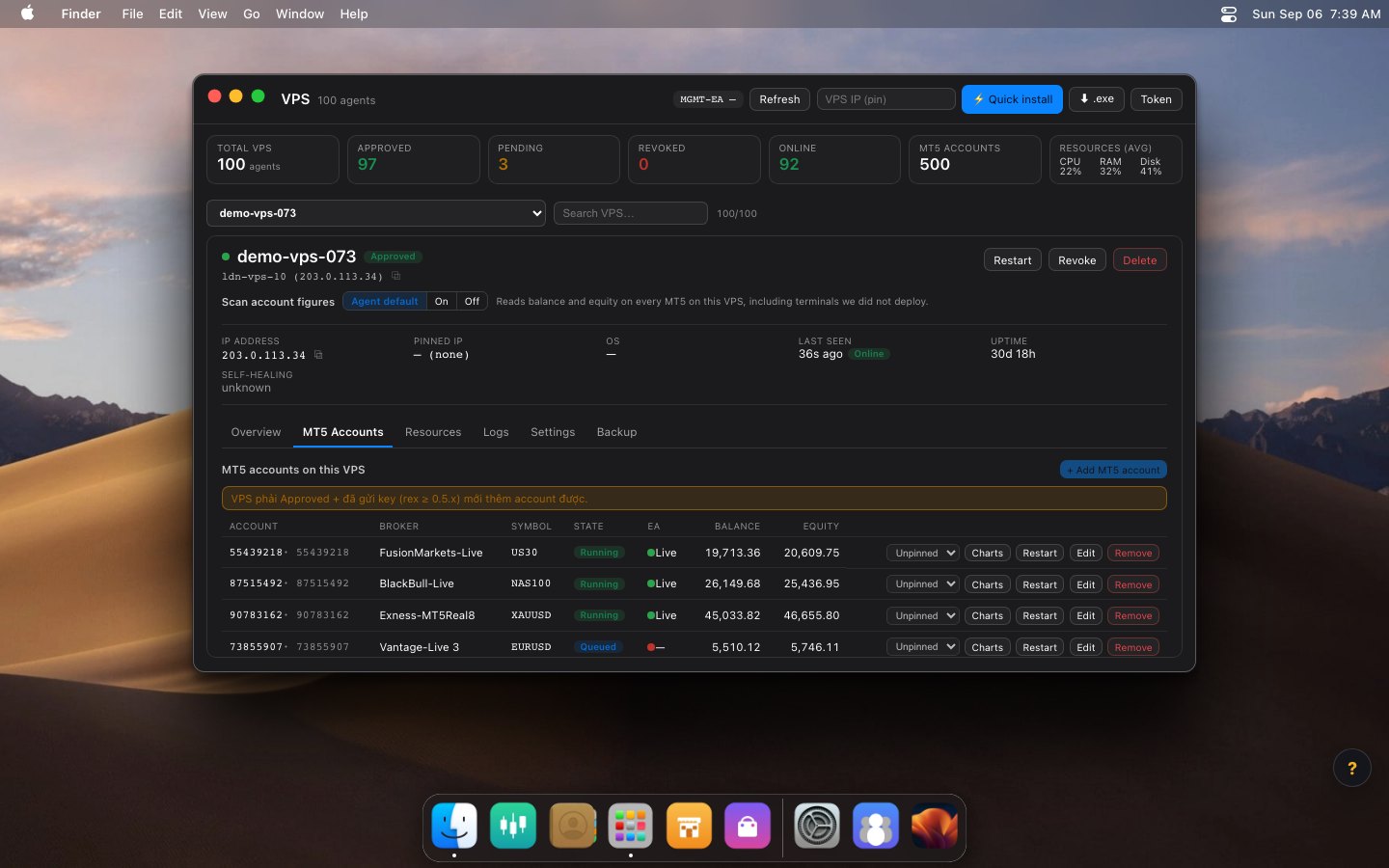
Scan account figures: the Agent default / On / Off switch lets rex read balance and equity from every MT5 terminal on the box, including ones it did not deploy.
Restart restarts rex. Revoke disconnects the machine. Delete removes it entirely.
Trading Accounts
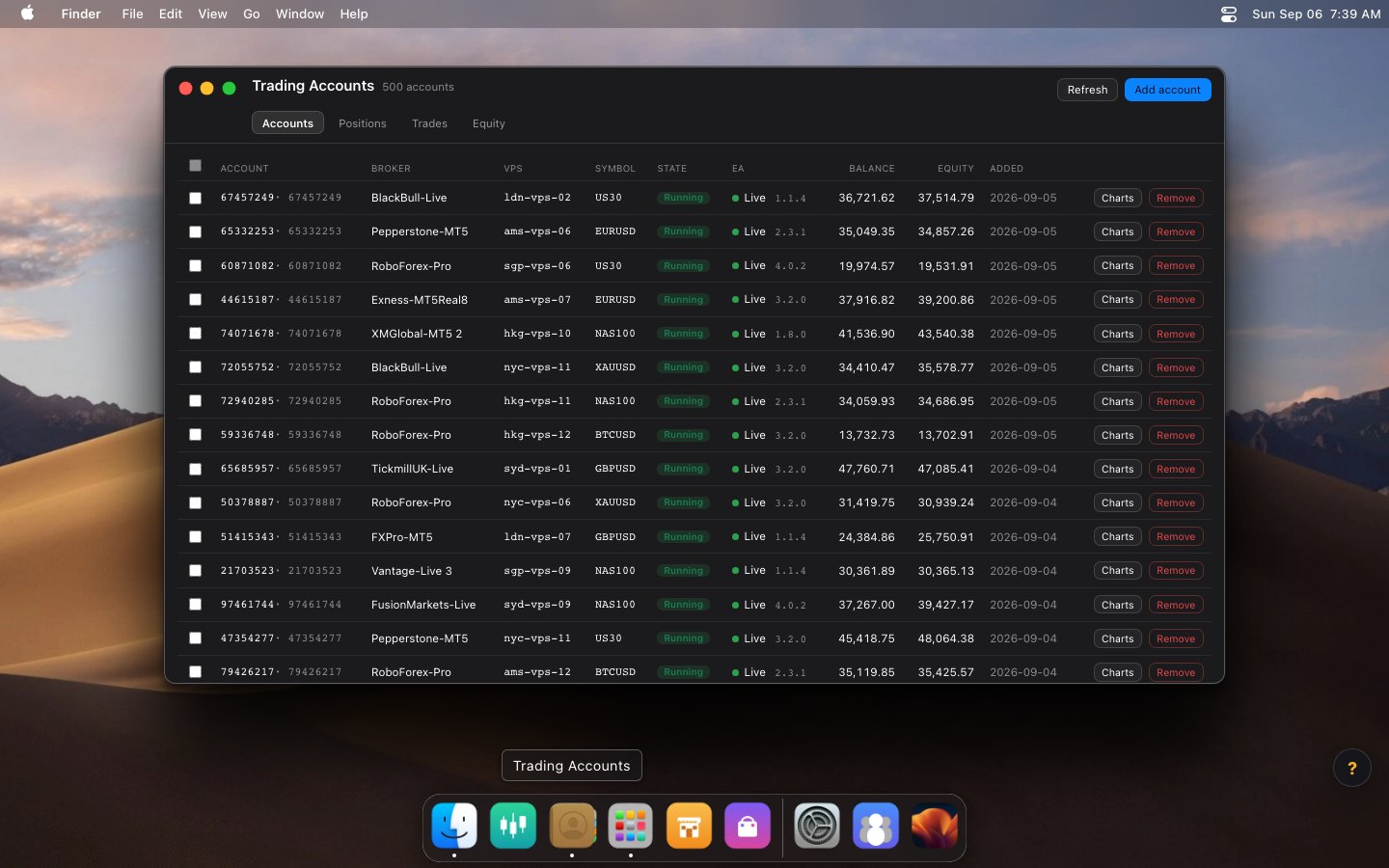
Every MT5 account you own, across every VPS. Four tabs: Accounts · Positions · Trades · Equity.
Adding an MT5 account
- Click Add account.
- Pick the VPS that will run it (the machine must be approved and have sent its key up).
- Enter the MT5 login, Broker server (e.g.
Exness-MT5Trial7), Symbol, and password. - Click Add. The account goes queued → rex deploys → running.
The columns
State: queued waiting · deploying installing · running live · failed needs a look · revoked disconnected. EA shows a green Live dot once the terminal is logged in, with the EA version. Charts opens the Charts app for that account. Remove deletes the account and cleans the machine.
The other three tabs
Positions — open trades. Trades — closed trades. Equity — the equity curve. These depend on your membership tier; lower tiers may see a lock icon.
Deploy one EA to many accounts
The EA Market flow attaches an EA to one account at a time. With several accounts across several VPS, use this instead: select once, click once.
- Open Trading Accounts.
- Tick the accounts you want. The header checkbox selects or clears all.
- A toolbar appears. Pick an EA from "Choose an EA…".
- Read the "N of M will restart" line.
- Click Deploy EA and confirm.
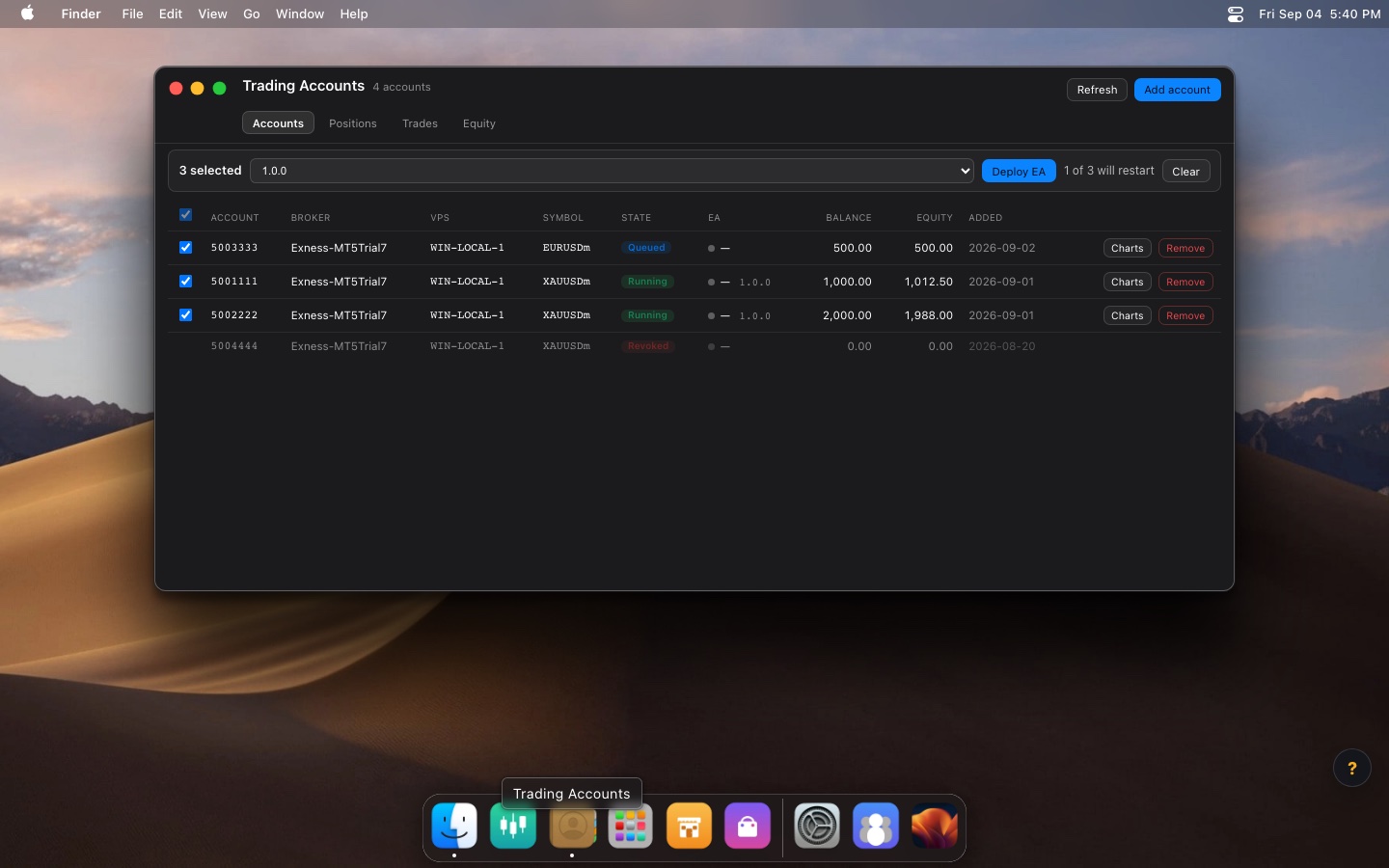
1 MT5 terminal(s) will RESTART and log in again.
revoked accounts have no checkbox. Accounts not yet running still take the EA — applied on their first deploy, with nothing to restart.
The result appears under the toolbar, e.g. 3 bound · 1 restarting · 2 already current.
Charts (multi-chart, multi-EA)
One MT5 account can run up to 5 charts, each with its own EA on its own symbol. Open it from the Charts button on an account row.
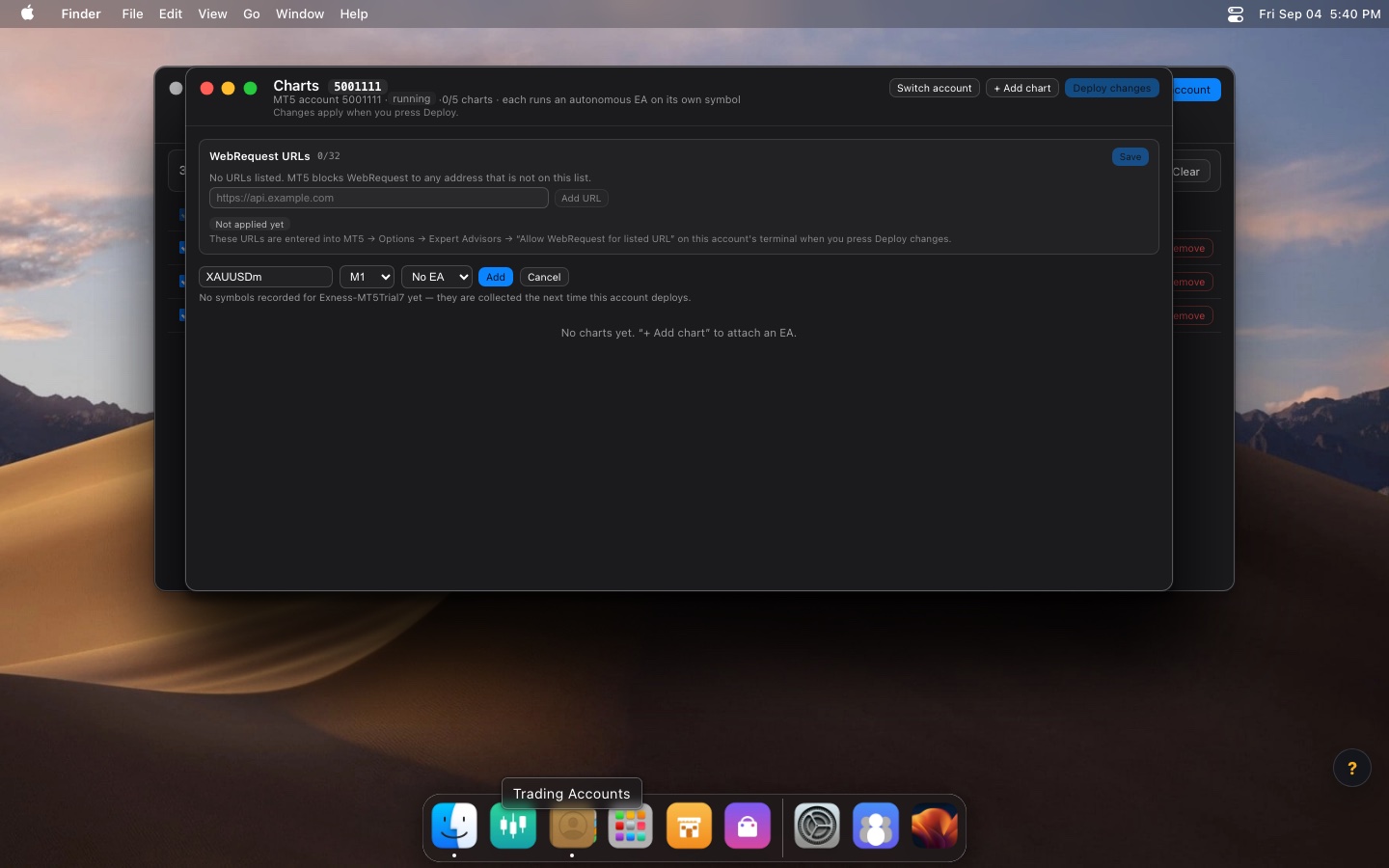
- + Add chart — type a symbol, pick a timeframe (M1…D1) and an EA, then press Add.
- Params — edit that chart's EA inputs. Table or JSON to switch editors.
- Deploy changes — apply. The terminal restarts.
Switch account jumps to another account without closing the window.
WebRequest URLs
MT5 blocks any WebRequest to an address not on its allow-list. Add URLs here (up to 32), press Save then Deploy changes — they are typed into MT5 → Options → Expert Advisors on that terminal for you. You need this when your EA calls an outside API (Telegram, a webhook, and so on).
My EA
Your own EA library — the .ex5 files you upload yourself.
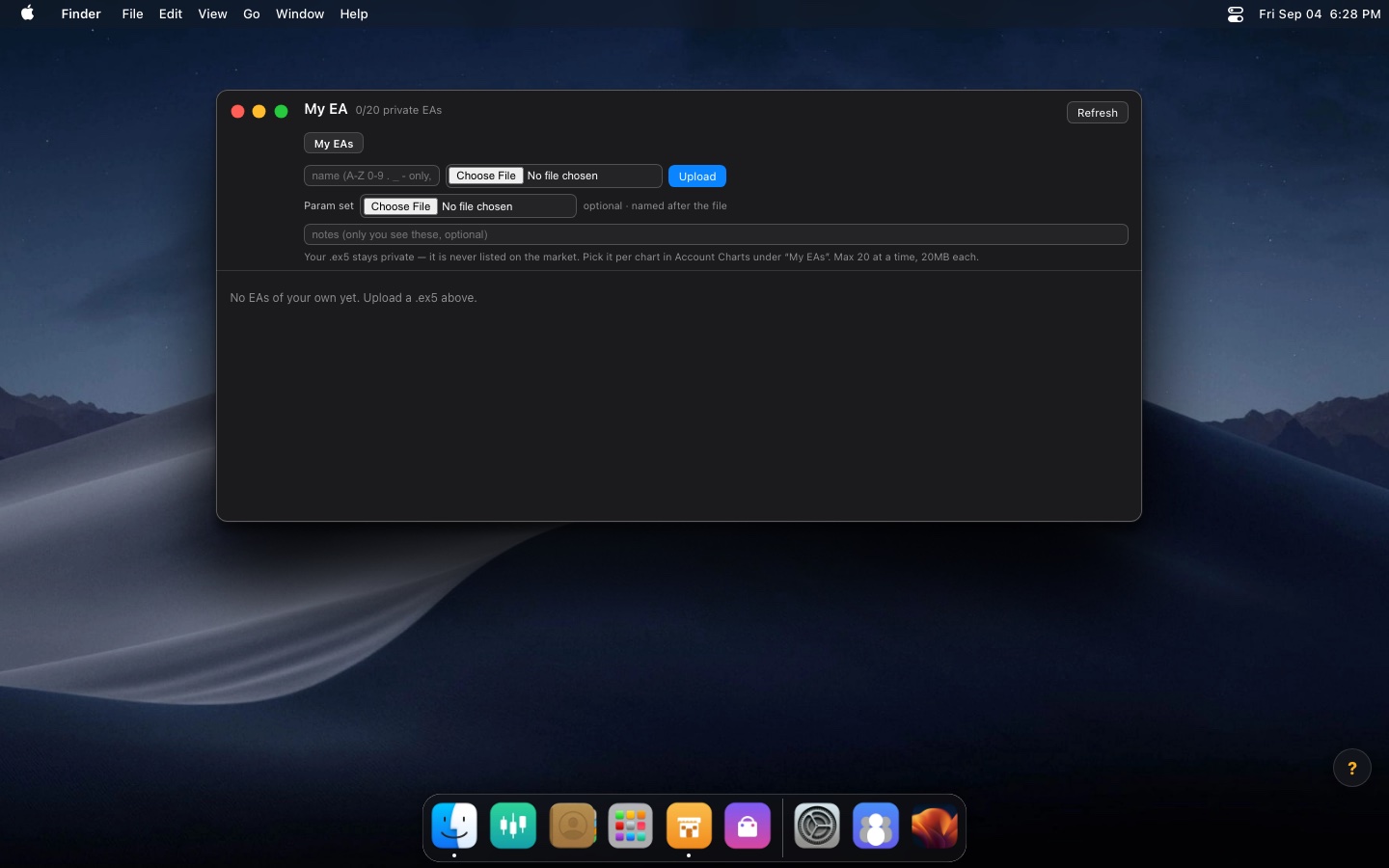
- Upload — add your own
.ex5, with an optional Param set. It is never listed on the market; you pick it in the Charts app under “My EAs”. Up to 20 EAs, 20MB each. - Params — set that EA's default inputs, used by every account unless a chart overrides them.
- Download — get the file back.
- Delete — remove it from your library.
The notes field is yours alone. Your count sits in the window title as 0/20 private EAs.
EA Market
EAs published by other users. Filter by Category / Timeframe / Asset, sort by Popular / Newest / A–Z.
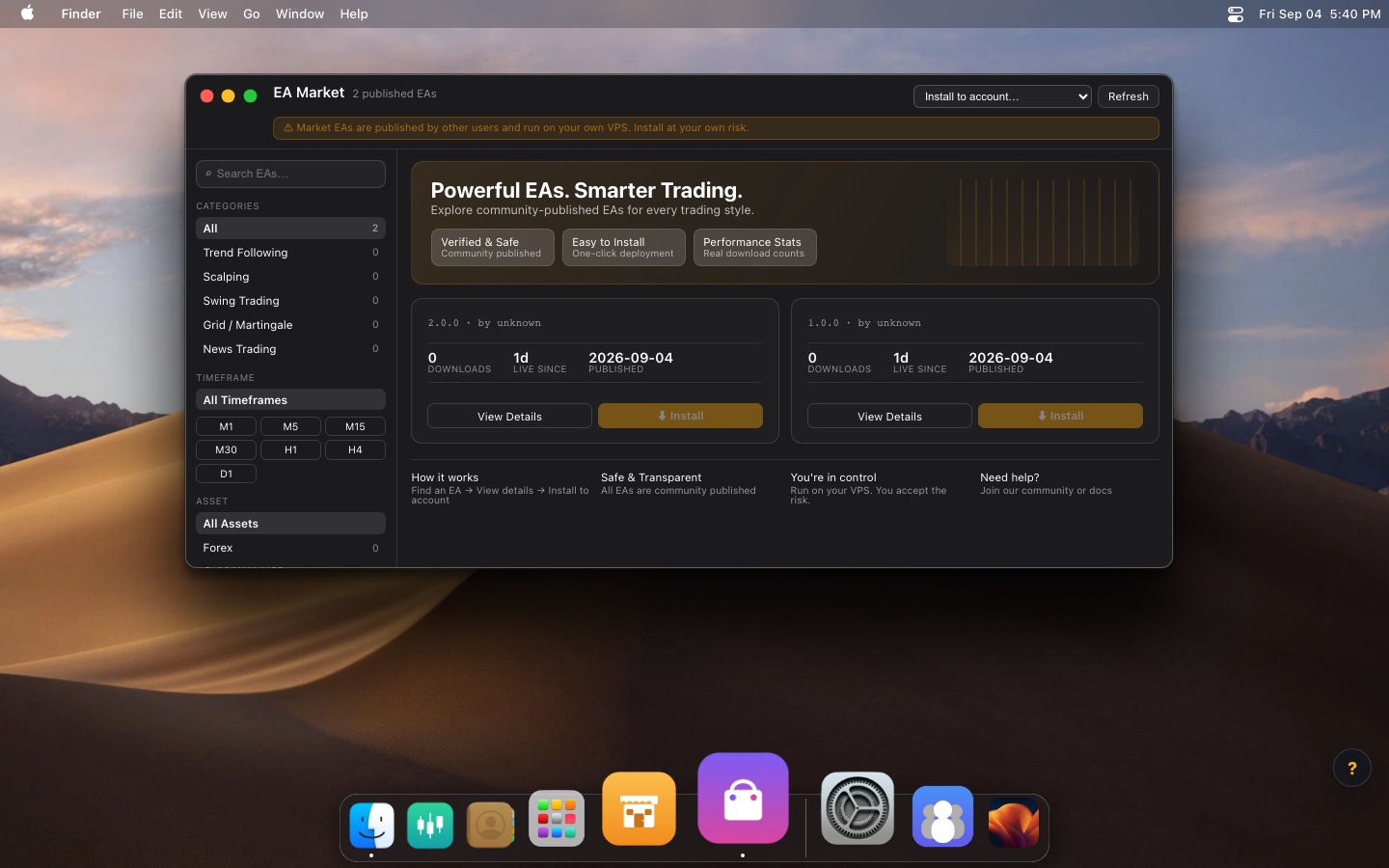
- Pick Install to account… at the top — the account to install into.
- Click ⬇ Install on the EA you want.
- View Details shows the description and any parameter sets the author published.
If an admin grants you publisher rights, a Publish button appears so you can list your own EA.
Settings
Your account, your plan, and the interface.
- Your plan — your tier and four usage bars: VPS, MT5 accounts, Private EAs (20), Param sets (50).
- Membership & payments — renewal date, if one is on file.
- Purchase history — recorded payments.
- Appearance — Light / Dark.
- Log Out.
Chart
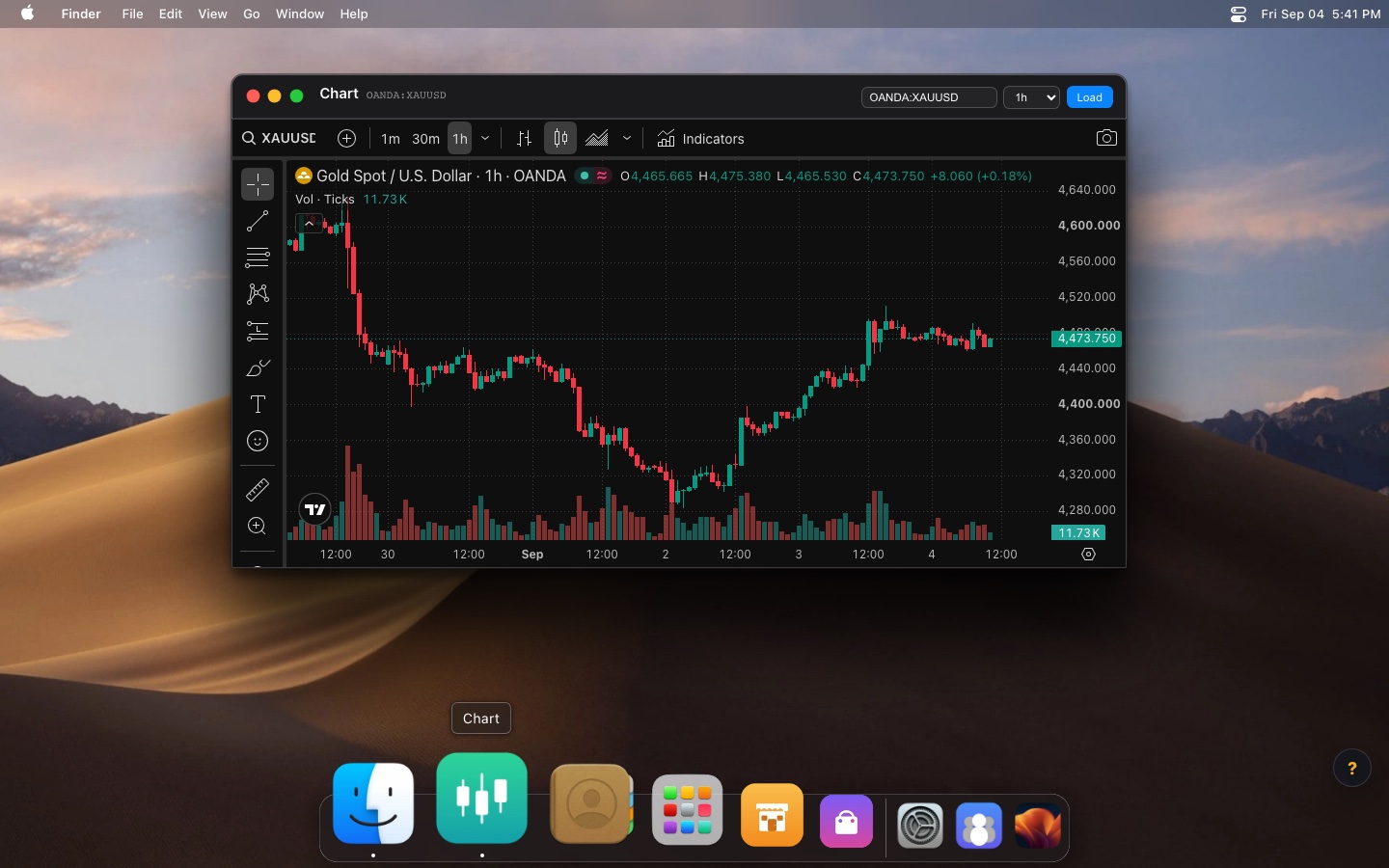
A full TradingView chart. Type a symbol (e.g. OANDA:XAUUSD), pick a timeframe, press Load. There is a drawing toolbar down the left, an Indicators button, and a snapshot button.
It is for looking and analysing, not for placing orders — the platform does not trade for you.
Wallpapers
Change the desktop wallpaper. Dynamic ones shift through the day.
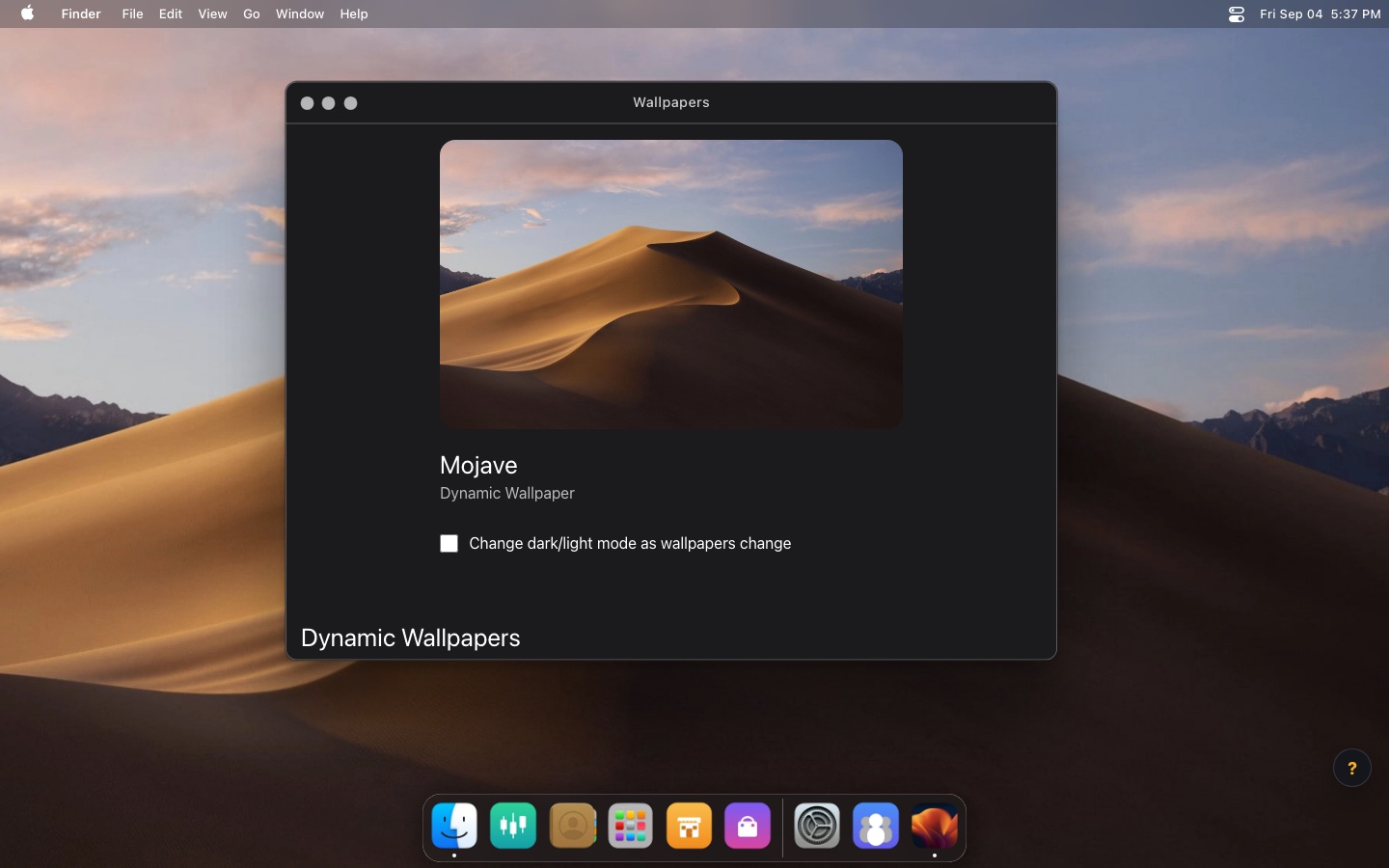
The "Change dark/light mode as wallpapers change" checkbox lets a dynamic wallpaper drive the light/dark theme too. Turn it off to keep whatever you chose in Settings.
Updates: you click, nothing is automatic
- rex-master: VPS → Overview tab → Check for update. If there is one, ⬆ Update lights up and upgrades that machine only.
- EAs: pin a version in the VPS Settings tab (whole fleet) or use bulk deploy (per account).
rex updates are digitally signed and anti-downgrade; a broken release rolls itself back. The one exception is a release marked mandatory (a security fix) — every VPS below it takes that automatically.
Membership limits
| Tier | Max VPS | Max MT5 accounts |
|---|---|---|
| free | 1 | 3 |
| basic | 3 | 15 |
| gold | 10 | 50 |
| platinum | 20 | 100 |
Settings shows an x/limit bar. Over the limit you cannot add more — but whatever is already running keeps running. Upgrades and downgrades are done by the admin.
Security
- Broker passwords are encrypted in the browser; only the VPS you picked can decrypt them, because the private key lives on that machine.
- Only signed-in users can download the installer or issue tokens. Tokens are single use and expire in 15 minutes.
- With an IP pinned, a stolen token used from anywhere else is refused.
- rex updates are digitally signed and anti-downgrade.
- Deleting an account is a real delete: secrets are wiped and the folder on the VPS is overwritten, then removed.
Troubleshooting
| Symptom | Fix |
|---|---|
| A VPS shows offline | Check the machine is up and online. rex reports on a schedule; after an update it can take a few minutes to show online again. |
| An account is stuck queued | The VPS must be approved and have sent its key up. If you just connected it, wait for its first check-in. |
| An account went failed | Look at the VPS Logs tab. A wrong password or a wrong broker server name is the usual cause. |
| An EA cannot reach an outside API | Add the URL under WebRequest URLs in the Charts app, then Deploy changes. |
| No new update appears | Press Check for update on the Overview tab. |
| Cannot add a VPS or account | You may have hit your tier cap — check Settings. |