Running multiple MT5 terminals on one VPS: portable installs, RAM budget, and the failures nobody warns you about
2026-09-06
A 2–4 GB Windows VPS runs more than one MT5 comfortably, if you install it the right way. This is the practical checklist: portable installs so every account has its own folder, a resource budget per terminal, and the failures that stop a bot silently while the RDP window still looks fine.
1. Why the default installer is the wrong tool
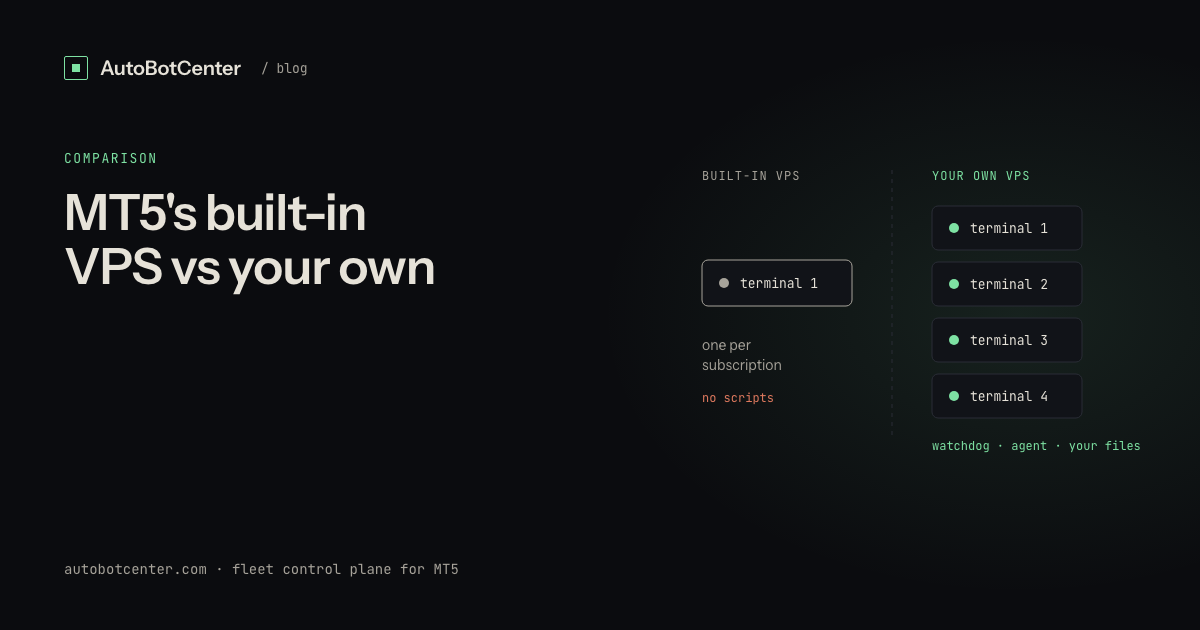
The stock MetaQuotes installer writes data into %APPDATA%\MetaQuotes\Terminal\<hash>. Installing a second broker's build works; installing the same broker twice overwrites the first. The day you want two accounts at the same broker running two different EAs, you find both terminals sharing one MQL5\Experts folder, the same .set files and the same logs. Fix one, break the other.
The right way is portable mode: one self-contained folder per terminal, launched with the /portable flag.
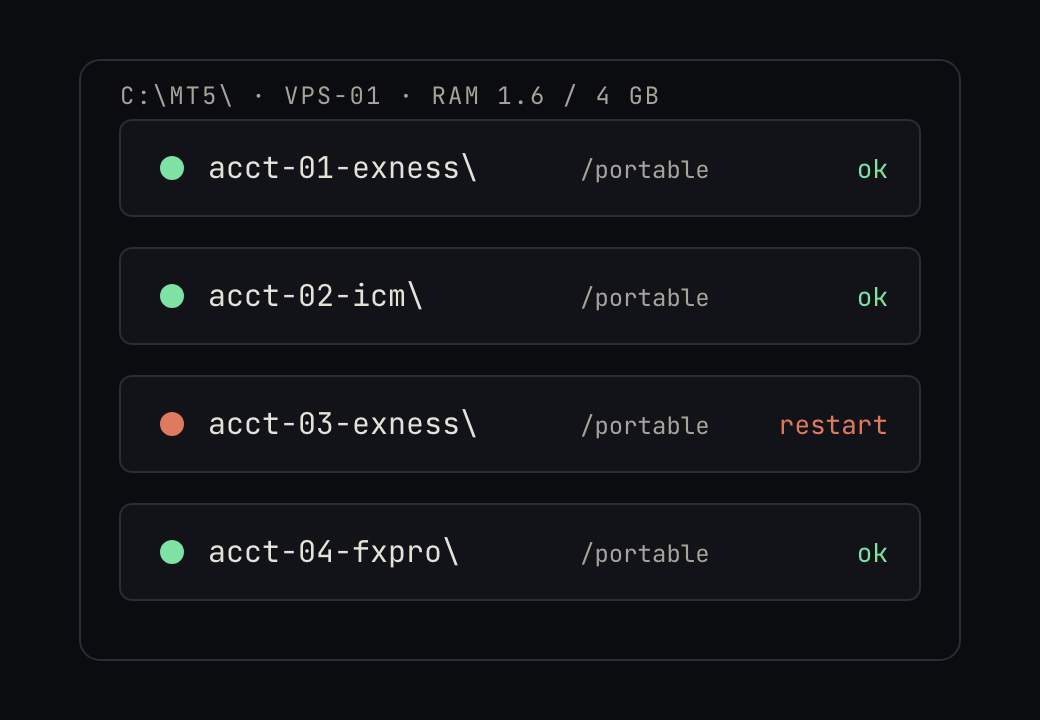
2. Portable installs: one folder per account
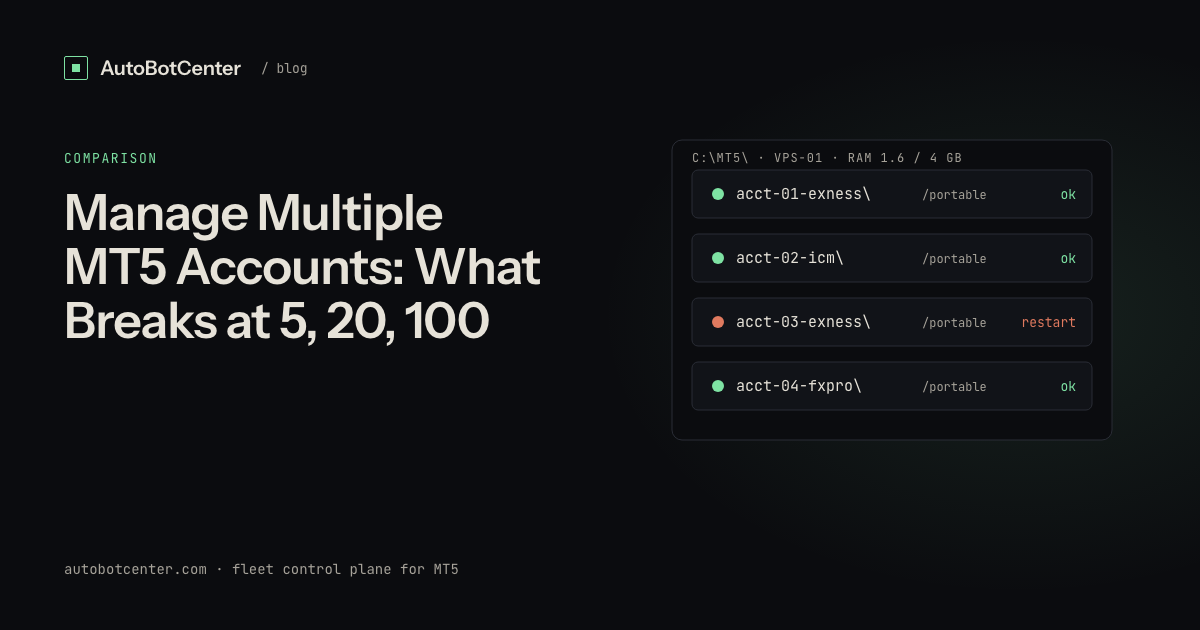
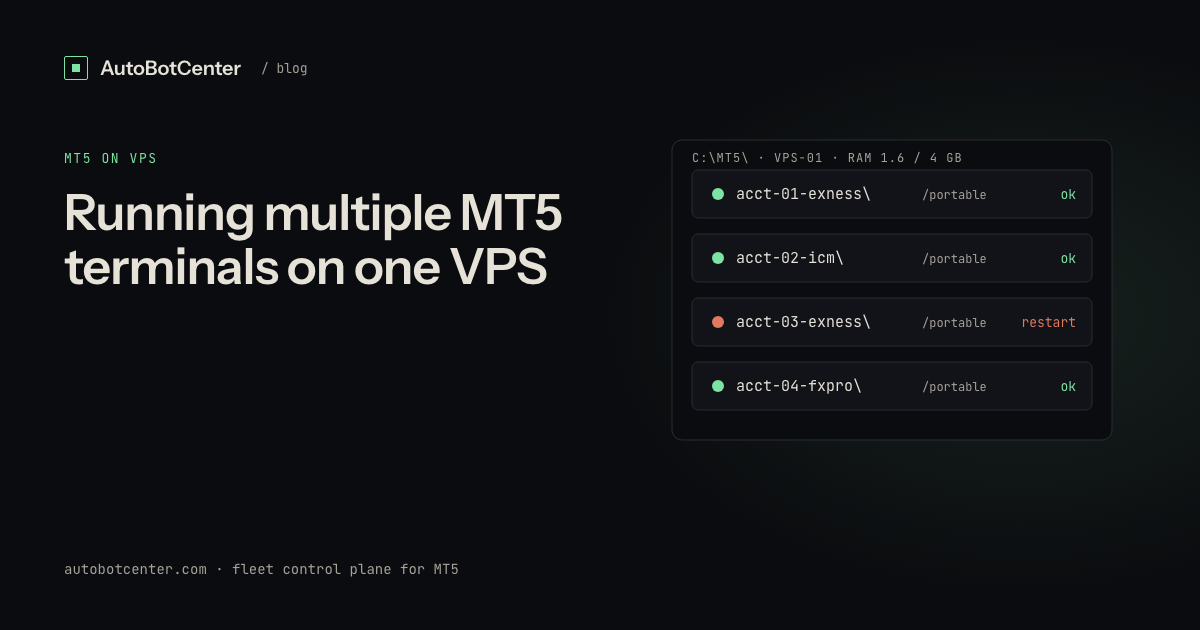
C:\MT5\
  acct-01-broker-a\    terminal64.exe   (run: terminal64.exe /portable)
  acct-02-broker-b\    terminal64.exe
  acct-03-broker-a\    terminal64.exe
- Install the broker build once into
C:\MT5\base. - Copy the whole
basefolder toacct-01-...,acct-02-.... - Create a shortcut and append
/portableto the Target. That terminal now reads and writes only inside its own folder. - Log in, drop the EA into that folder's
MQL5\Experts.
The payoff is not tidiness. When one terminal corrupts itself, you delete the folder and copy base again in thirty seconds without touching the others.
3. RAM and CPU budget
| Terminals | Minimum RAM | Comfortable RAM | CPU |
|---|---|---|---|
| 1–2 | 1 GB | 2 GB | 1 vCPU |
| 3–4 | 2 GB | 3 GB | 2 vCPU |
| 5–6 | 3 GB | 4 GB | 2 vCPU |
| 8+ | 4 GB | 6–8 GB | 4 vCPU |
Rule of thumb: 300–350 MB per MT5 with one or two charts, plus 600–800 MB for Windows. Terminals with many charts, heavy indicators or deep history easily reach 500 MB. Past 85% RAM Windows starts swapping, terminals freeze one by one, ticks arrive late and EAs report timeouts on a perfectly good network.
Three things to trim in every terminal: Tools → Options → Charts, set "Max bars in chart" to 5,000–10,000; keep only the symbols you trade in Market Watch; turn off News and Signals in the Toolbox.
4. Five ways the bot stops while RDP looks green
- Windows Update reboots the VPS. The box comes back, MT5 does not. Put the terminal in Task Scheduler with "Run whether user is logged on or not", pause updates, set Active Hours to market hours.
- AutoTrading is off after a restart. The button is red because "Allow automated trading" was never saved in Options → Expert Advisors. Terminal open, chart open, EA attached, no orders.
- Lost broker connection, terminal still open. Bottom-right says "No connection". The EA "runs" and every OrderSend fails. Nothing tells you.
- WebRequest blocked. Any EA calling an external API needs the URL whitelisted (Options → Expert Advisors → Allow WebRequest). One missing line and the EA throws error 4014 forever.
- EA detached from the chart. A closed chart, a changed template, or a terminal that restarted with a different profile. From the outside it is indistinguishable from "working fine".
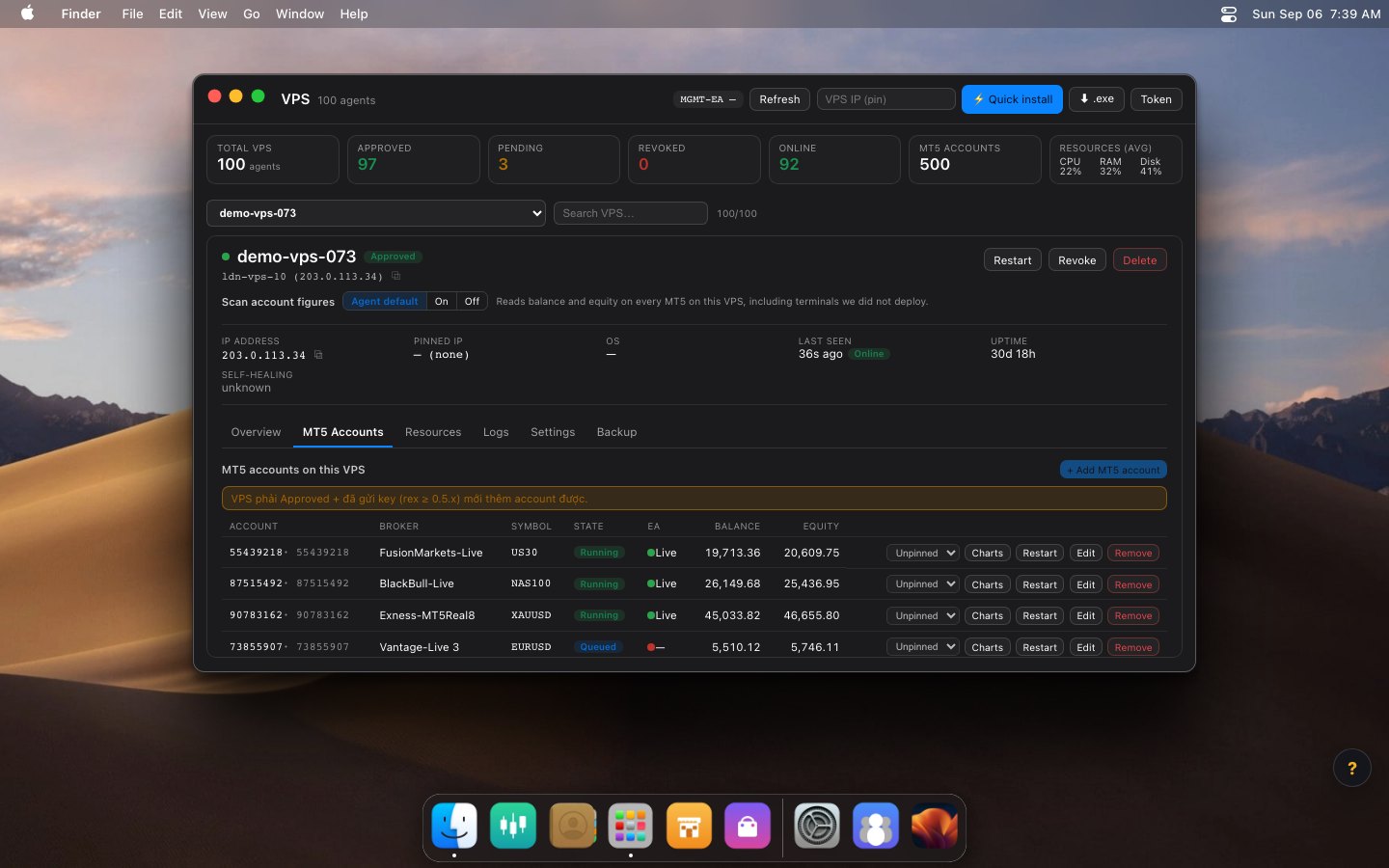
5. "MT5 is open" versus "the EA is actually working"
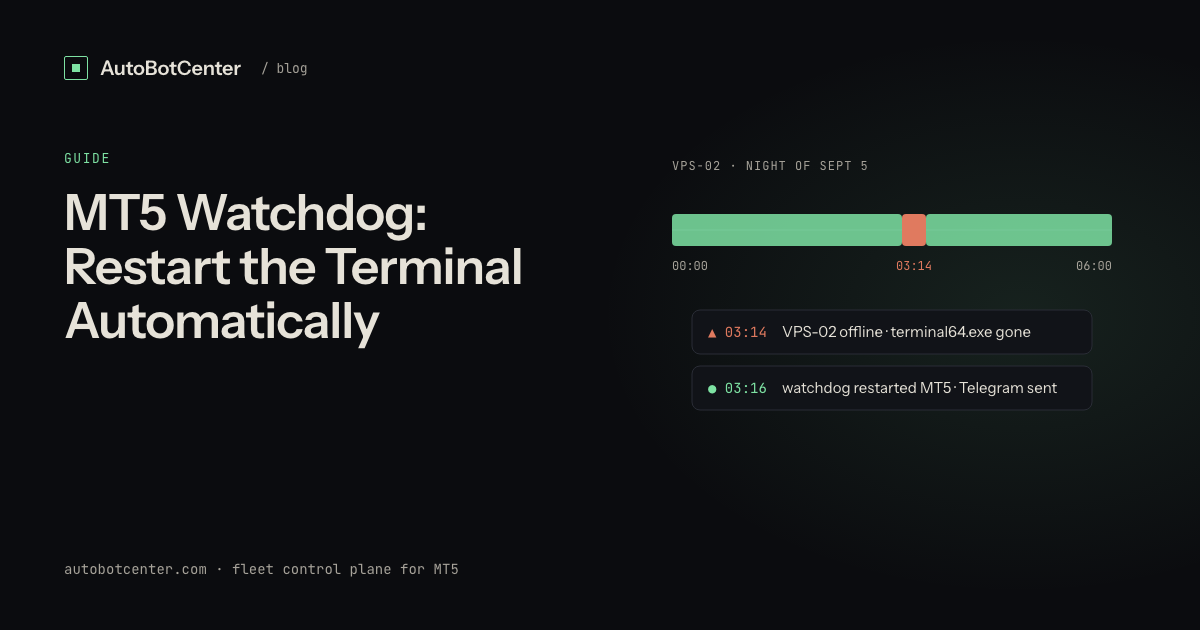
This is the crux of any monitoring. A live terminal64.exe process proves nothing about the bot. The reliable check is a heartbeat: the EA writes a small file (or sends a ping) every minute with the current time. Something outside the terminal reads it; if the timestamp is older than 3–5 minutes, the EA has stopped whatever the process list says.
You can build this yourself: a PowerShell script on a five-minute schedule that reads the heartbeat file's modification time in every C:\MT5\acct-* folder, messages Telegram when it goes stale, and relaunches the terminal when the process is gone. About forty lines.
Or let an agent do it. AutoBotCenter installs a small agent on the VPS; it enumerates every running terminal (including ones you opened by hand), reads EA health, revives dead terminals and reports all your VPS to one dashboard. Same idea, minus writing it and minus wondering whether the script itself is still running.
6. Checklist before leaving the VPS overnight
- One portable folder per terminal, named after the account.
- RAM under 75% with every terminal open and history loaded.
- AutoTrading on, "Allow automated trading" saved, WebRequest URLs listed.
- Windows Update paused, terminals start with the VPS.
- A heartbeat, and something other than you reading it.
Tired of RDP-ing into every box?
AutoBotCenter puts every VPS, MT5 terminal and EA on one dashboard: a watchdog that revives dead terminals, remote EA deployment, Telegram alerts. The free tier covers one VPS, no card needed.
Start free