Your MT5 EA stopped trading on the VPS: 7 causes and how to catch each one before you lose trades
2026-09-06
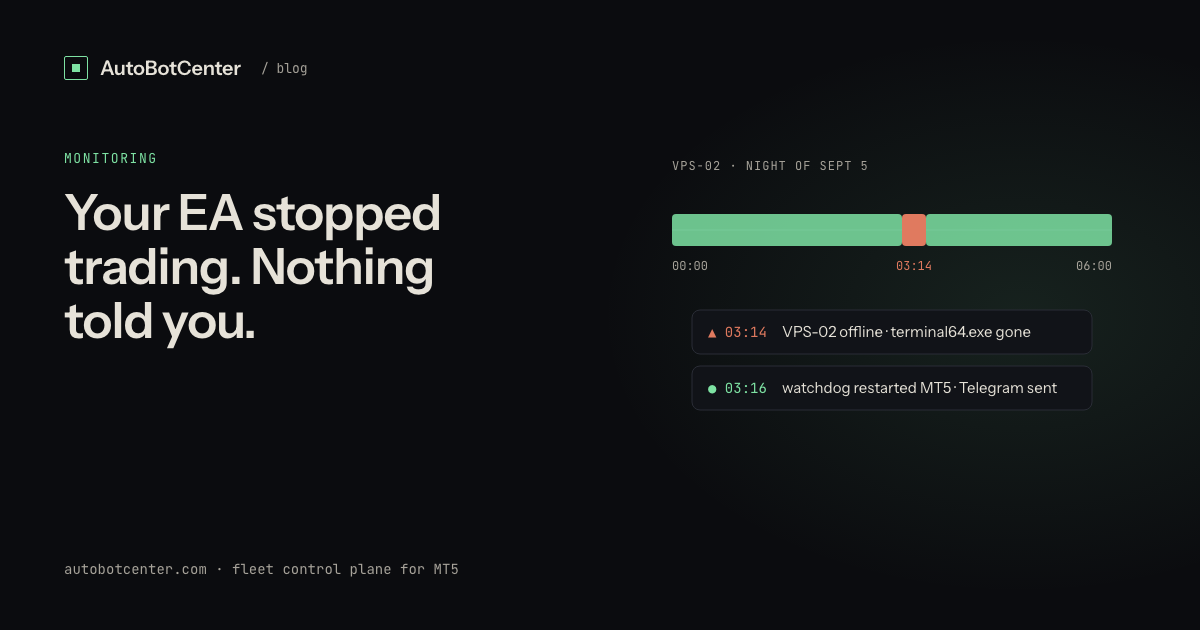
"The bot ran fine all week; today I opened the terminal and there has not been a single trade since Tuesday." Everyone who runs an EA on a VPS hits this at least once. The problem is rarely the EA. The problem is that nothing told you when it stopped. Here are the seven causes in order of how often they happen, what each looks like in the logs, and how to know within minutes instead of days.
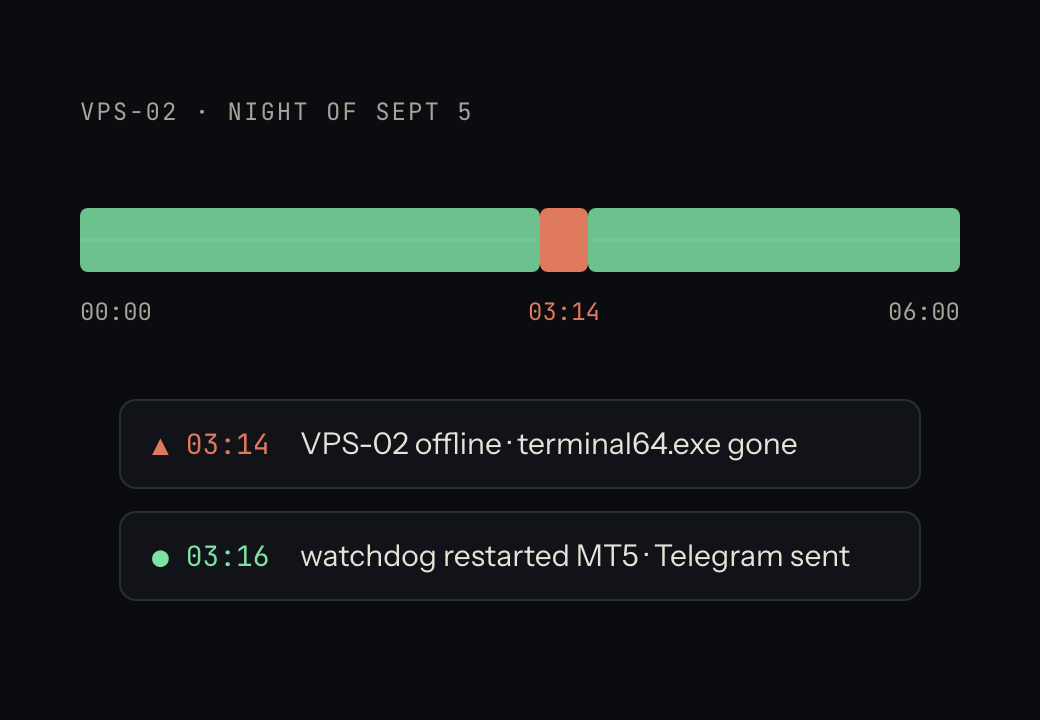
1. The VPS rebooted and MT5 did not come back
Symptom: Event Viewer shows a boot; the terminal's Logs folder stops abruptly at an odd hour (usually 3–5 AM, Windows Update time). Cause: Windows Update restarted the box, or the provider ran maintenance. Fix: launch the terminal from Task Scheduler (trigger "At startup", run whether the user is logged on or not), pause Windows Update, and set Active Hours to market hours.
2. AutoTrading is off after a restart
Symptom: the AutoTrading toolbar button is red; the Experts log says automated trading is disabled. Cause: "Allow automated trading" in Tools → Options → Expert Advisors was never saved, or the EA's own "Allow live trading" input is off. Fix: enable both, save the profile, restart the terminal once to confirm it sticks.
3. Broker connection lost, terminal still open
Symptom: bottom-right shows "No connection" or "Invalid account"; the Journal repeats connection to ... failed. Cause: the broker moved servers, the password changed, or the VPS got a new IP the broker blocks. Fix: log in again; "Invalid account" almost always means a changed password. This one is dangerous because the EA still "runs" and the chart still draws.
4. WebRequest blocked
Symptom: Experts log shows WebRequest error 4014 or URL is not allowed. Cause: the EA calls an external API (news, signals, licence check) and the URL is not whitelisted. Fix: Options → Expert Advisors → Allow WebRequest for listed URL, add the exact URL including https, then restart the EA.
5. Out of margin, or a run of rejected orders
Symptom: not enough money, market closed, invalid volume, trade context busy. Cause: insufficient margin, lot size outside the symbol's limits, or the EA firing too fast. Fix: depends on the error, but the common thread is that the EA is alive and trying, just failing. If all you check is "EA still on the chart", you will never see it.
6. Terminal frozen from RAM exhaustion
Symptom: the terminal stops responding, Task Manager shows 90%+ RAM, the chart does not tick although connected. Cause: too many terminals or charts on a small VPS; see running multiple MT5 terminals on one VPS. Fix: lower "Max bars in chart", drop indicators, or add RAM. A frozen terminal never recovers on its own; kill and relaunch.
7. The EA was detached from the chart
Symptom: the EA's name is gone from the chart's top-right corner; the Experts log shows removed or a deinit reason. Cause: a timeframe change the EA does not support, a template change, or a terminal that restarted into a different profile. Fix: reattach and save the profile (File → Profiles → Save As), because the terminal reopens the last profile.
Catching it in five minutes instead of five days
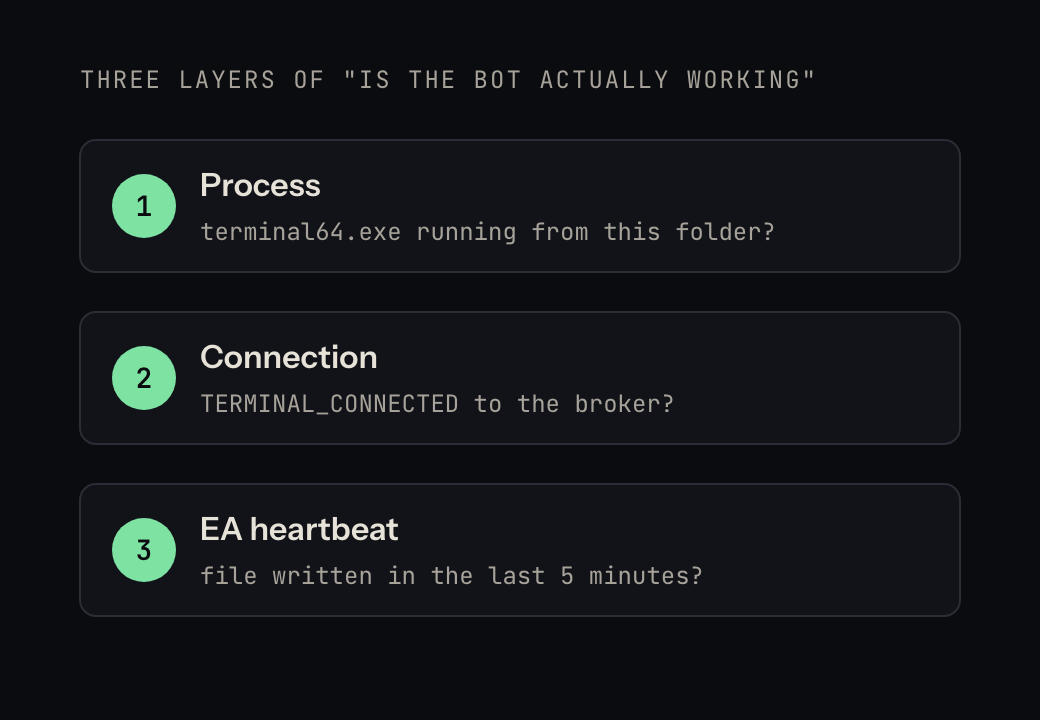
All seven share one property: a live MT5 process tells you nothing. Real monitoring has three layers:
- Process: is
terminal64.exerunning from that folder? If not, launch it. - Connection: is the terminal connected to the broker? Readable from the Journal or from the EA via
TerminalInfoInteger(TERMINAL_CONNECTED). - EA heartbeat: the EA writes a timestamp to a file every minute. A file older than 3–5 minutes means the EA has stopped, for whichever of the seven reasons.
Build it yourself: a scheduled PowerShell script that checks those three things for every terminal folder, messages Telegram when something is wrong, and relaunches the terminal when the process is gone. Done properly it is an afternoon, and then you have to remember to check that the script itself is still running.
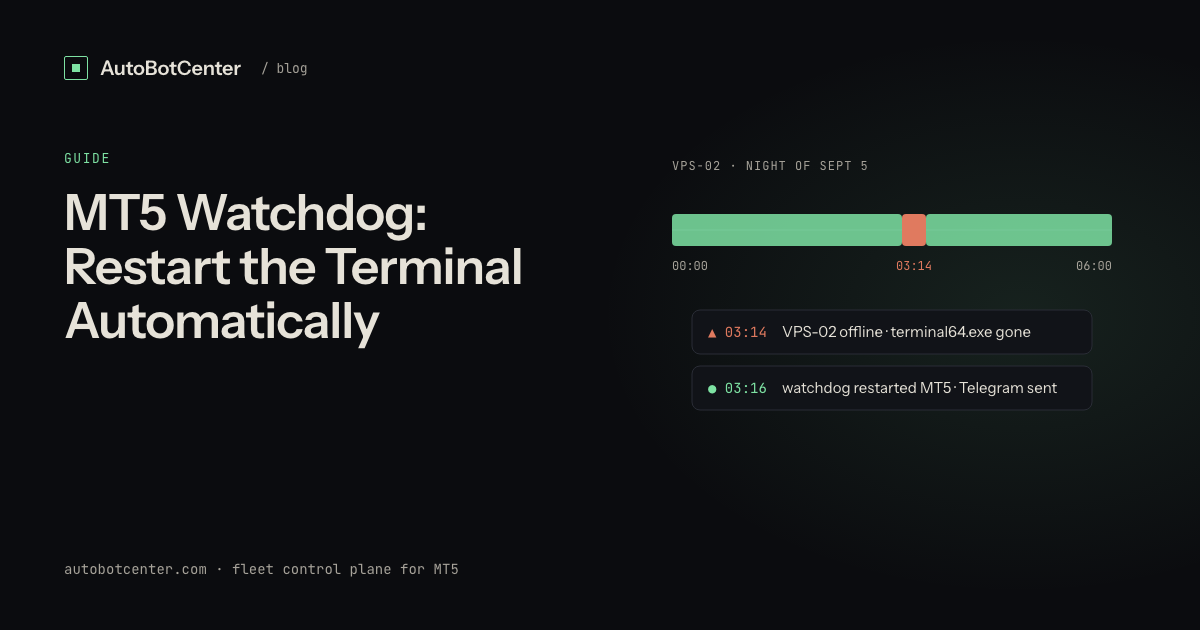
Or use an agent that already does it: AutoBotCenter installs one agent per VPS, runs all three layers for every terminal (including ones you opened by hand), revives dead terminals, and reports every VPS to one dashboard with Telegram alerts. You keep your VPS and your EAs. The only difference is that when the bot stops, you know in minutes.
Tired of RDP-ing into every box?
AutoBotCenter puts every VPS, MT5 terminal and EA on one dashboard: a watchdog that revives dead terminals, remote EA deployment, Telegram alerts. The free tier covers one VPS, no card needed.
Start free